Finding & Forwarding Your Tax Return
Need to send a copy of your tax return to a lender, banker, landlord or financial advisor? Every return we’ve prepared for you is saved in your Client Portal, and you can forward it straight from there — no need to call or email us for another copy.
- Open your Client Portal and click Documents in the left-hand menu. You’ll see a folder for each tax year.
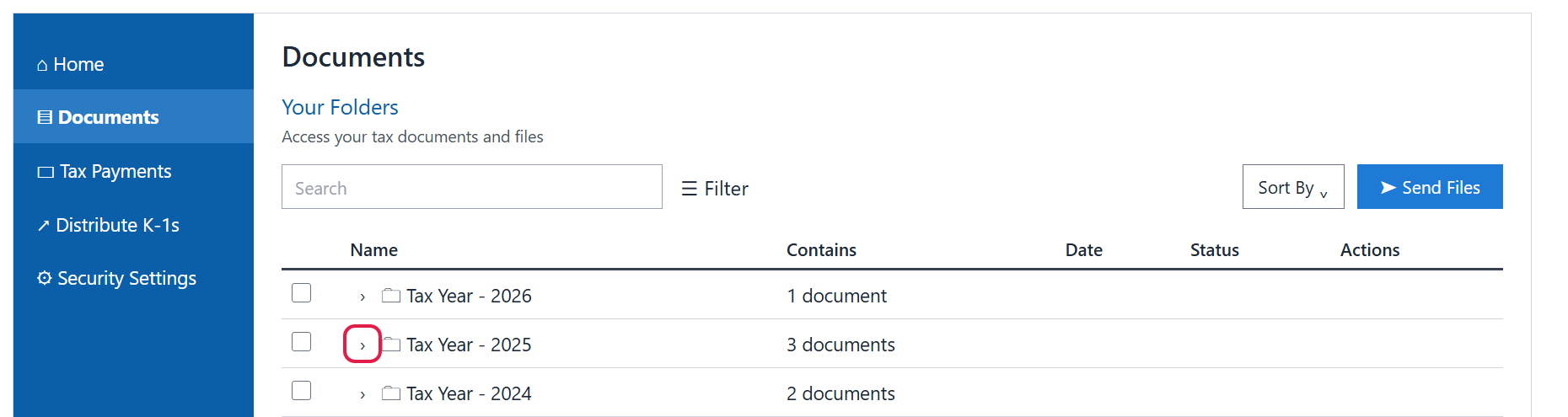
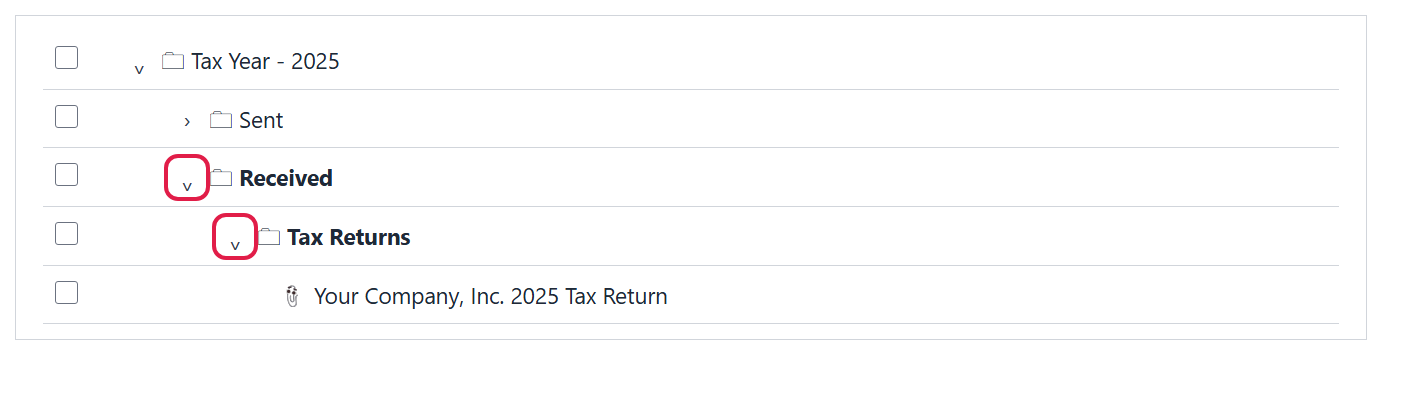
- Click the arrow (⌄) next to the tax year you need, then keep clicking the arrows to open Received and then Tax Returns. Your return is listed inside.
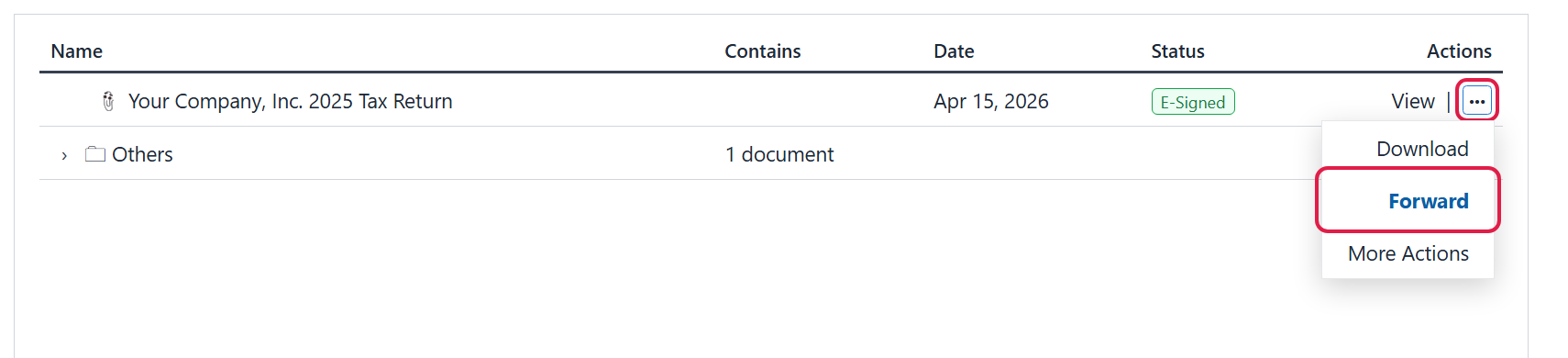
- Click the three dots (···) at the far right of the return, then choose Forward.
- Enter the email address of the person you’re sending it to, add a note if you’d like, and send. They’ll receive a secure link to the document.
Good to know
- Want your own copy instead? Choose Download from the same three-dot menu to save the return to your computer, or click View to open it.
- Have more than one return? Personal and business returns are listed separately in the same Tax Returns folder — check the name before you forward.
- Can’t find it? Type the year or “tax return” in the Search box at the top of the Documents page. Received holds documents we’ve sent to you; Sent holds files you’ve uploaded to us.
- Still stuck? Call us at (765) 742-4141 and we’ll walk you through it.