Reviewing & Signing Your Return
When your return is ready, we’ll send it to you through SafeSend so you can review, sign and pay from any computer or phone. Here’s exactly what you’ll see, step by step.
- Open our email and click Let’s Get Started. The email’s subject starts with “Action Required: Please Review and Sign Your Tax Return.” Click Get Started on the next page, enter the last four digits of your Social Security number and click Confirm. We’ll then email you a one-time access code — type it in and click Confirm (the code expires in 20 minutes, so check your junk/spam folder if you don’t see it).
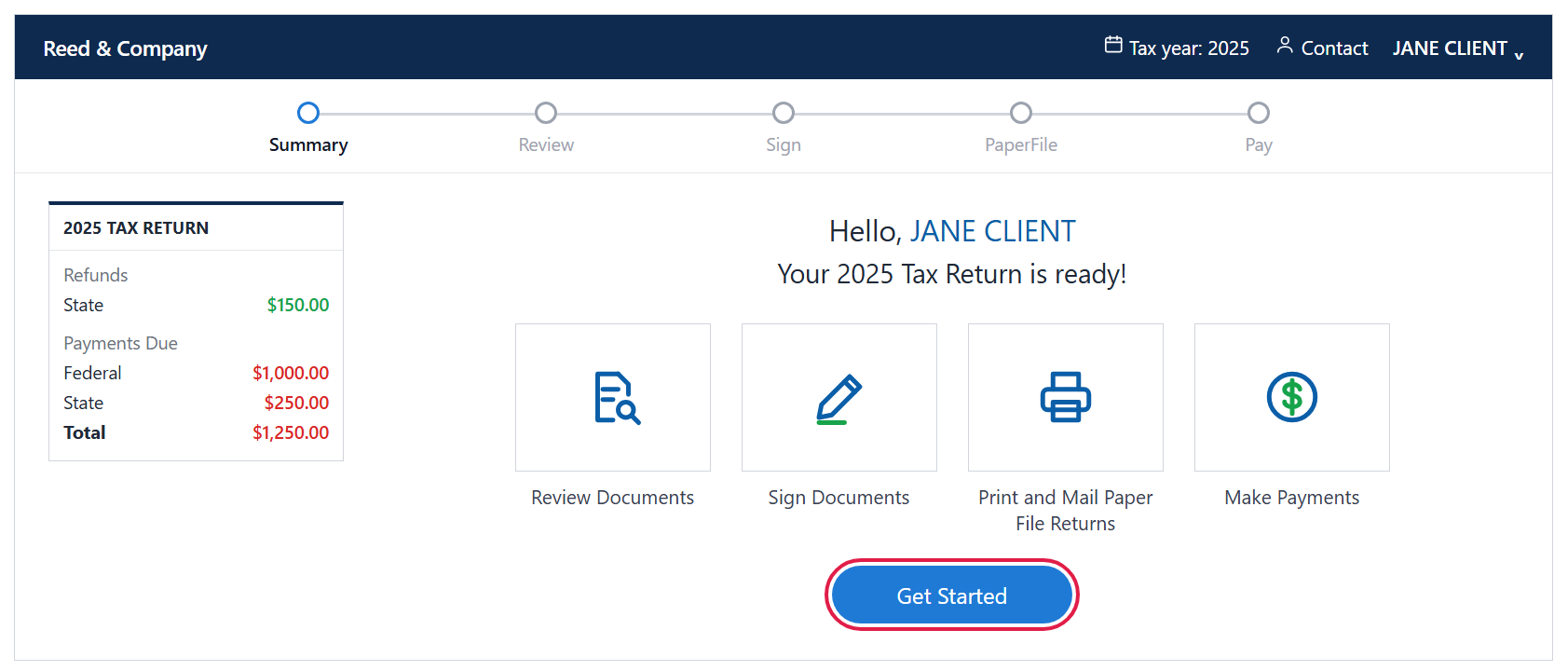
- Look over your summary, then click Get Started. The panel on the left shows your refunds and any payments due, and the tiles show the steps ahead: review, sign, paper-file (if needed) and pay.
- Read our message and your invoice. If we included a note, read it and click Next. On the Tax Preparation Fees page you can click Pay Now to pay your invoice online, or click Next to keep going and pay later.
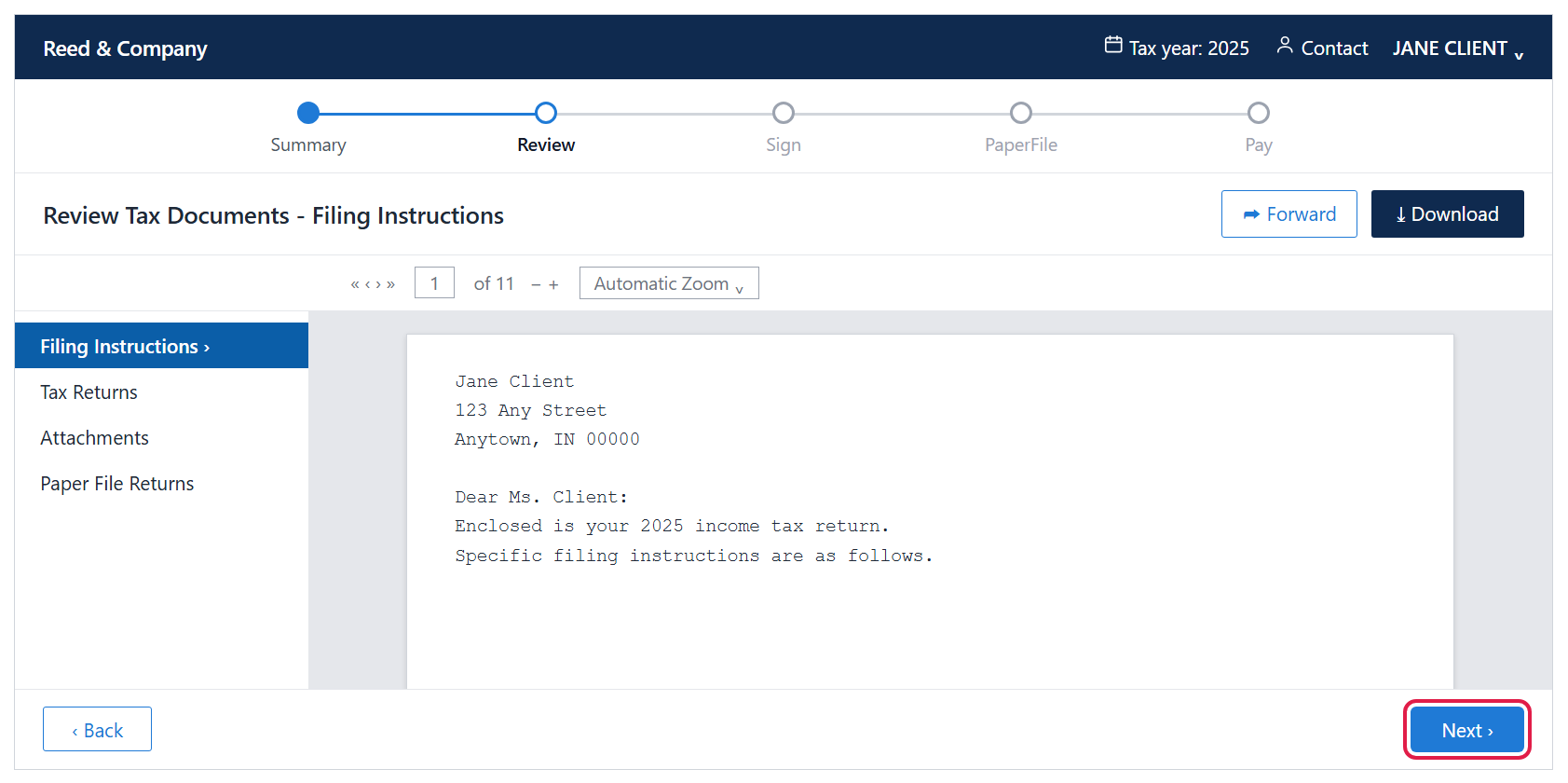
- Review your tax documents, then click Next. Click each section on the left — Filing Instructions, Tax Returns, Attachments and Paper File Returns (if any) — to read them. The Download and Forward buttons at the top let you save a copy or send one to someone else.
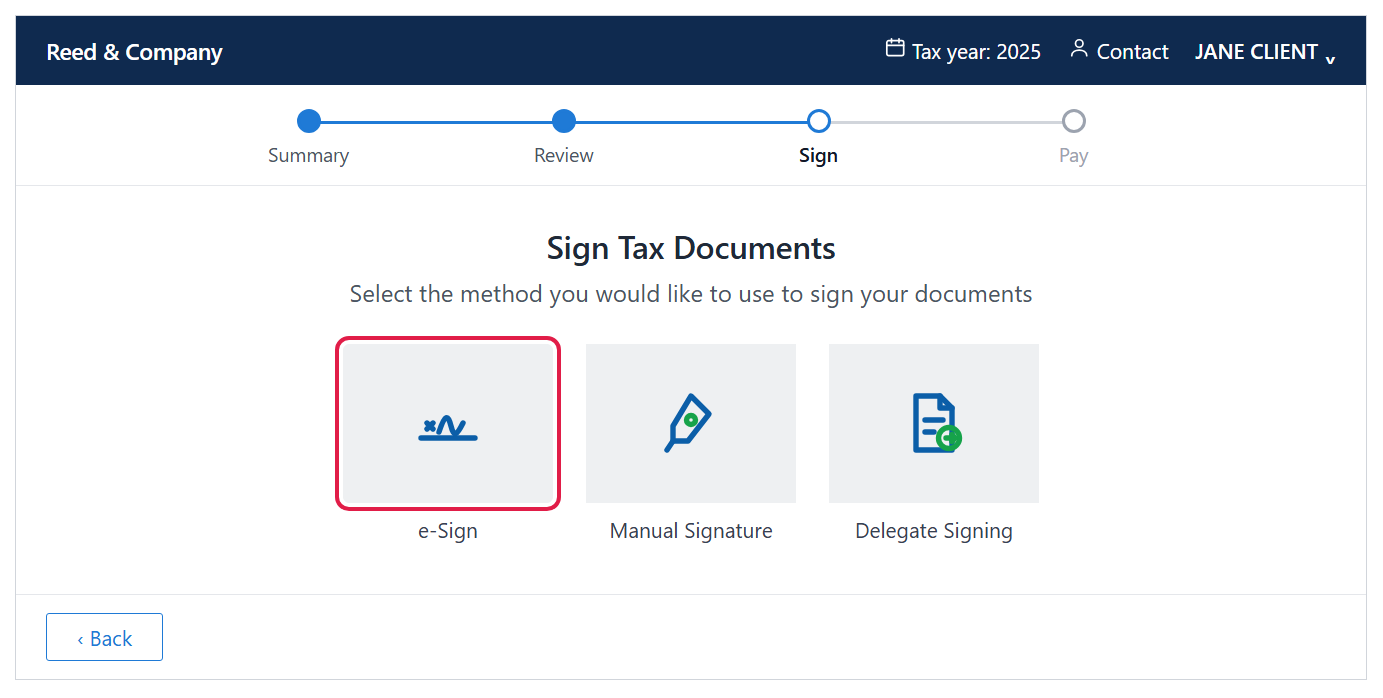
- Choose how to sign — usually e-Sign. You may also see Manual Signature (a handwritten signature on paper) or Delegate Signing, depending on your return. For e-Sign, confirm your date of birth, check the box I have reviewed my tax returns and consent to e-Sign, and if you file jointly enter your spouse’s email address, then click Next.
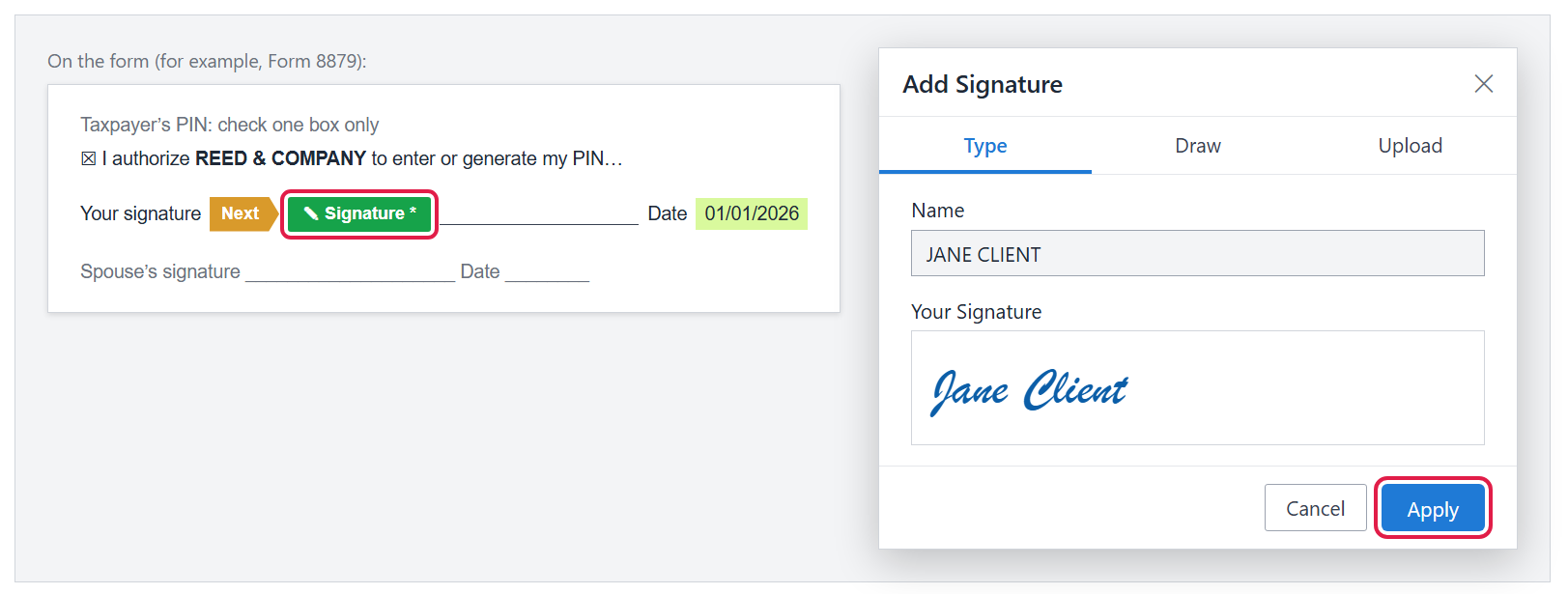
- Click each green Signature tag and click Apply. In the Add Signature box you can Type, Draw or Upload your signature. Keep clicking the orange Next flag to jump to every remaining spot (such as Form 8879 and our engagement letter); a green check appears beside each finished form, and then you can click Next at the bottom.
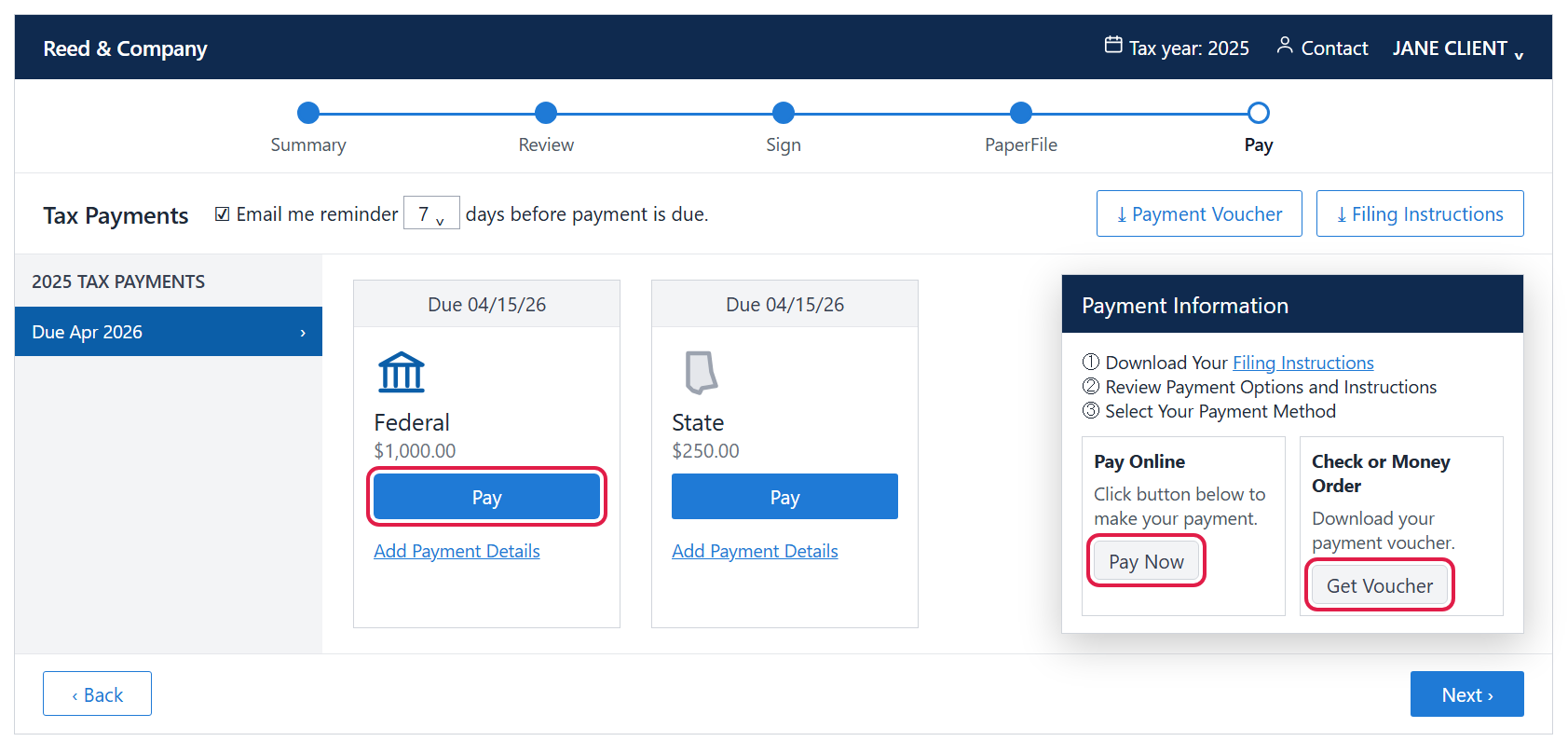
- Pay any tax due (or download your vouchers). On Tax Payments, click Pay on a payment to open Payment Information: choose Pay Now to pay online, or Get Voucher to mail a check or money order. You can also download all vouchers with Payment Voucher and set an email reminder before each due date. A card marked “DO NOT PAY” is already scheduled for automatic withdrawal.
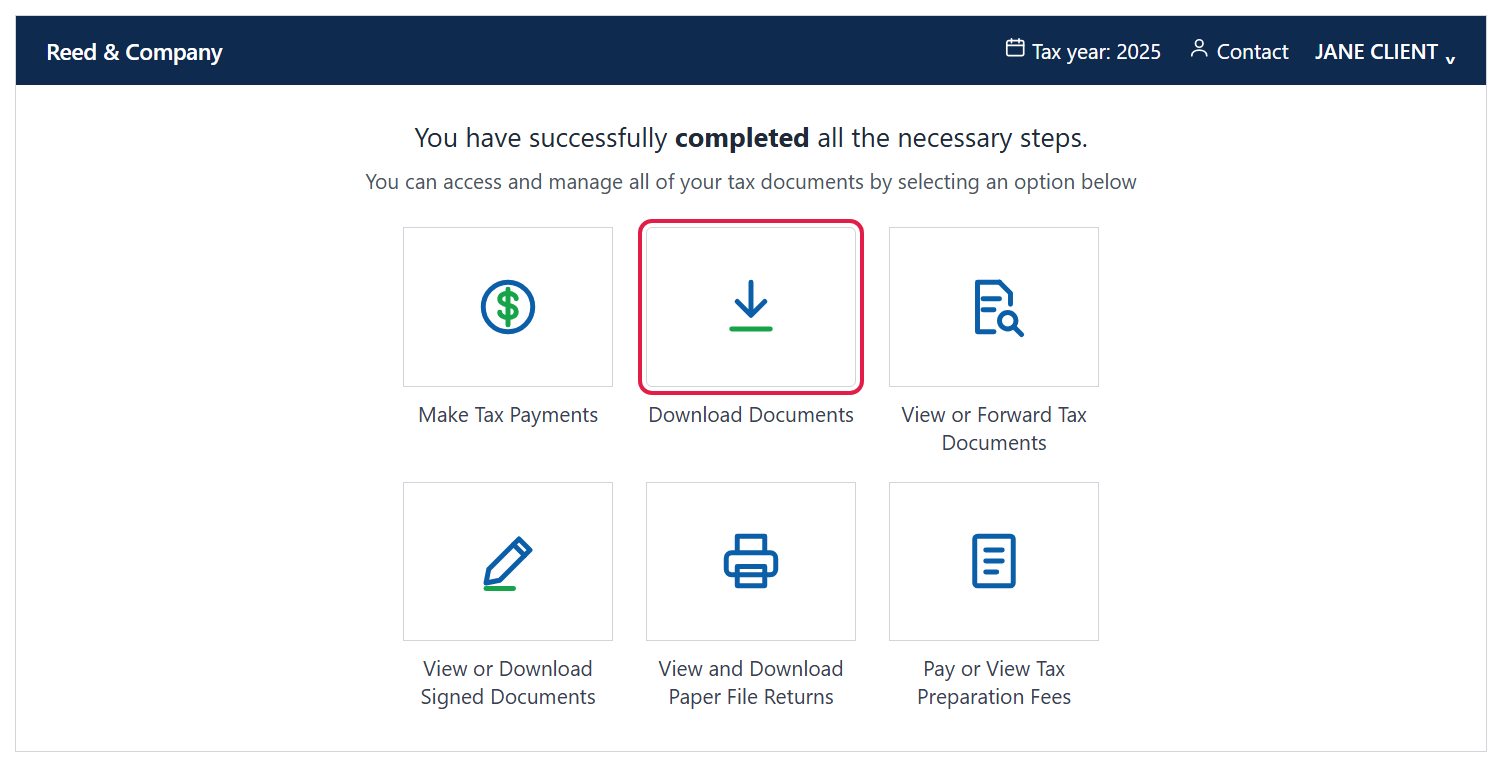
- You’re done — download your copy. Your dashboard confirms you’ve completed all the necessary steps. Click Download Documents to save your return, or come back any time to view signed documents, make payments or pay your invoice.
Good to know
- Filing jointly? Your spouse gets their own email to sign. Your return can’t be filed until both of you have signed — the dashboard shows a Send A Reminder link if we’re still waiting on them.
- Paper-filed returns: If part of your return can’t be e-filed, a PaperFile step appears. Click I Consent, then Print or Download each return, sign it and mail it to the address shown before the due date.
- Business owners: If your return includes K-1s to distribute, you can do that from your dashboard after signing.
- Clicking Add Payment Details only records a payment you’ve made for your reference — it does not send any money.
- Still stuck? Call us at (765) 742-4141 and we’ll walk you through it.