Getting Around Your Client Portal
Your SafeSend Client Portal keeps all of your tax documents, payment vouchers and signing tasks in one secure place. Here’s a quick tour of how to get in and find your way around.
- Open the portal from our email or go to ssportal.com/reedcompanypc. Our SafeSend emails include an Access Client Portal link, or you can go straight to https://www.ssportal.com/reedcompanypc.
- Enter your Email ID and click Continue. Use the email address we have on file for you. If you’ve forgotten which one, click Forgot username?.
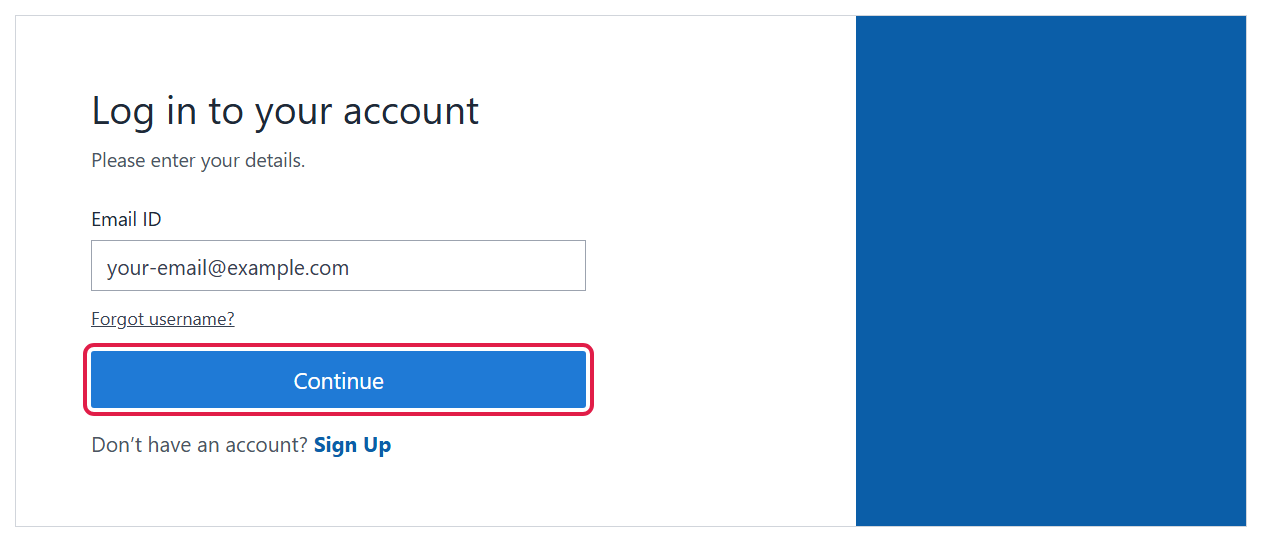
- First time? Click Sign Up to create your account. On the Register your account screen, enter your name and email (a phone number is optional), click Verify your email, then type in the One-Time Access Code we email you and click Confirm. The code expires in 20 minutes—if it doesn’t arrive, check your spam/junk folder or click Resend Code.
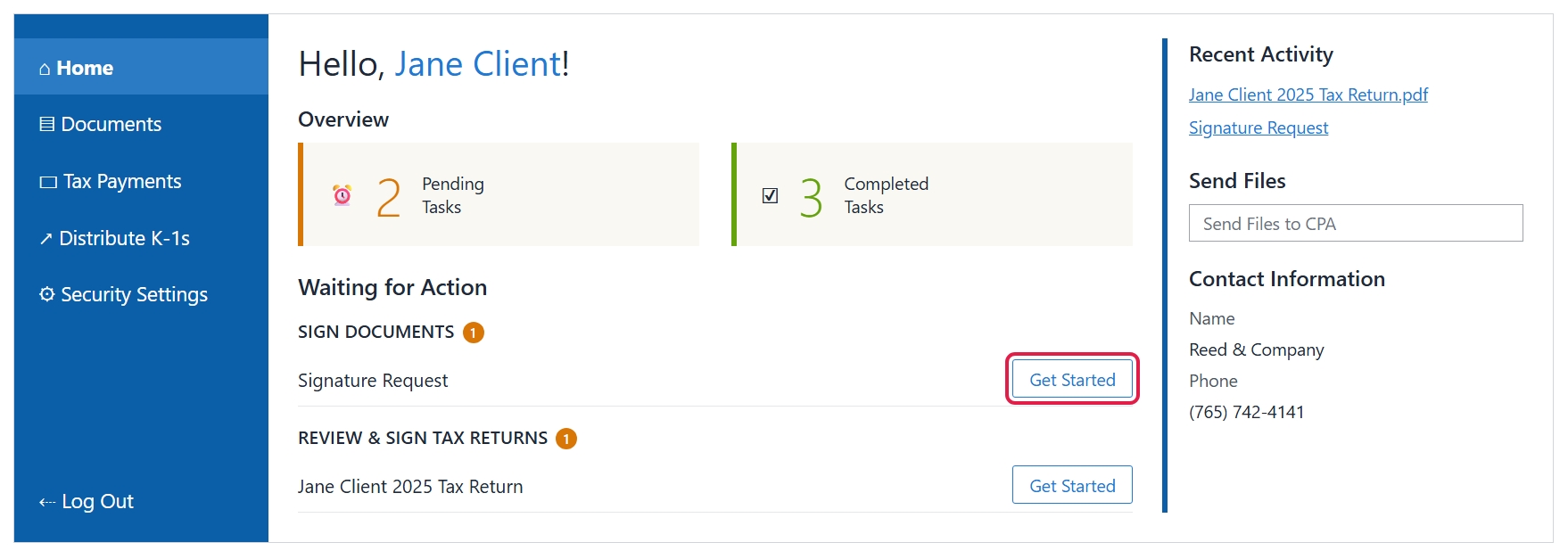
- Use the Home page to see what needs your attention. The Overview shows your pending and completed tasks, and Waiting for Action lists anything to sign or review—just click Get Started next to an item. On the right you’ll see your Recent Activity, a Send Files shortcut and our contact information.
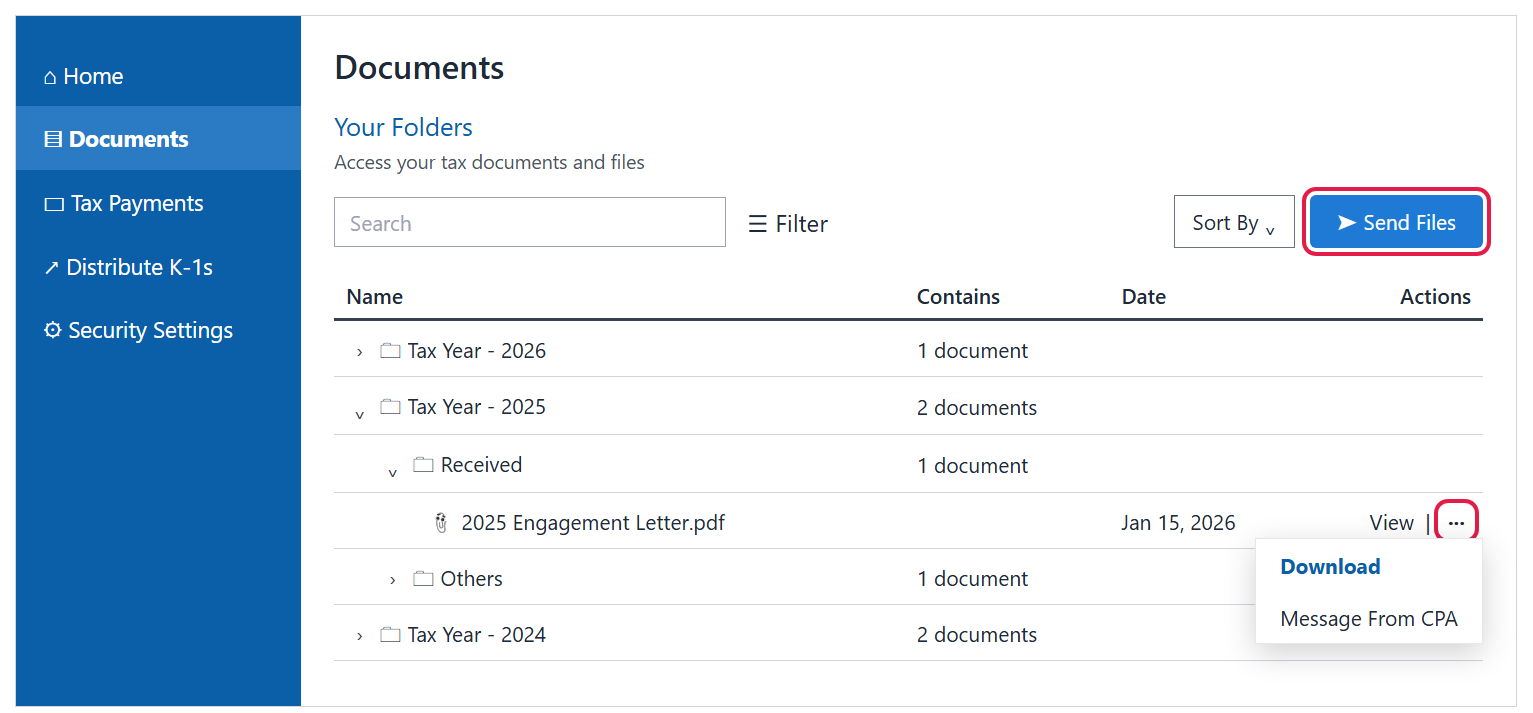
- Click Documents to download or send files. Your files are organized in folders by tax year—click the arrow next to a folder to open it. Click the ··· menu next to a file to Download it, or click Send Files to upload documents to us. You can also use Search, Filter and Sort By to find things quickly.
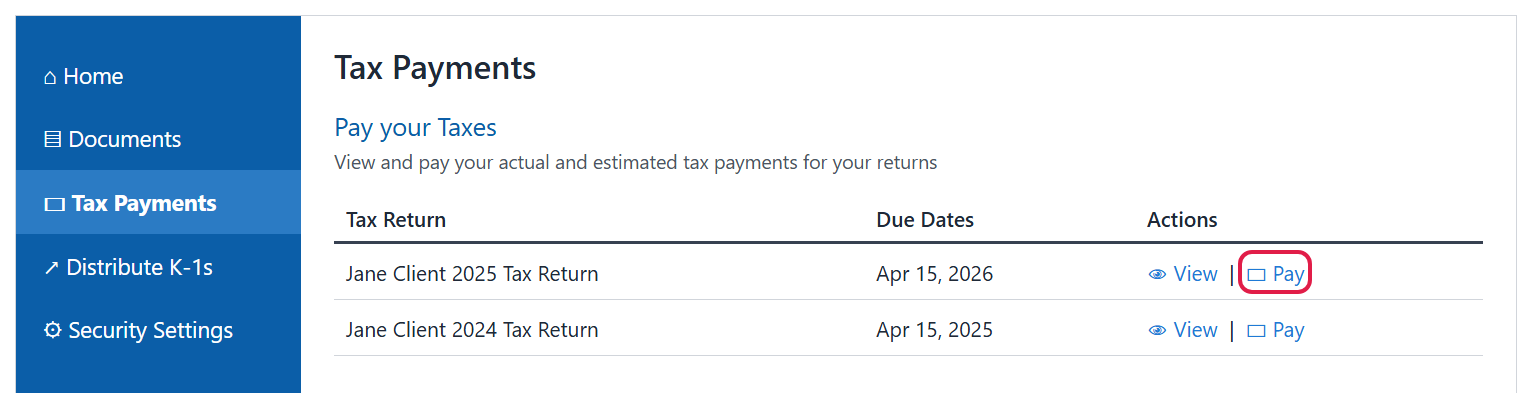
- Click Tax Payments to view and pay your vouchers. Each return is listed with its due dates. Click View to see a summary of refunds and payments due, or Pay to go to your tax payments dashboard.
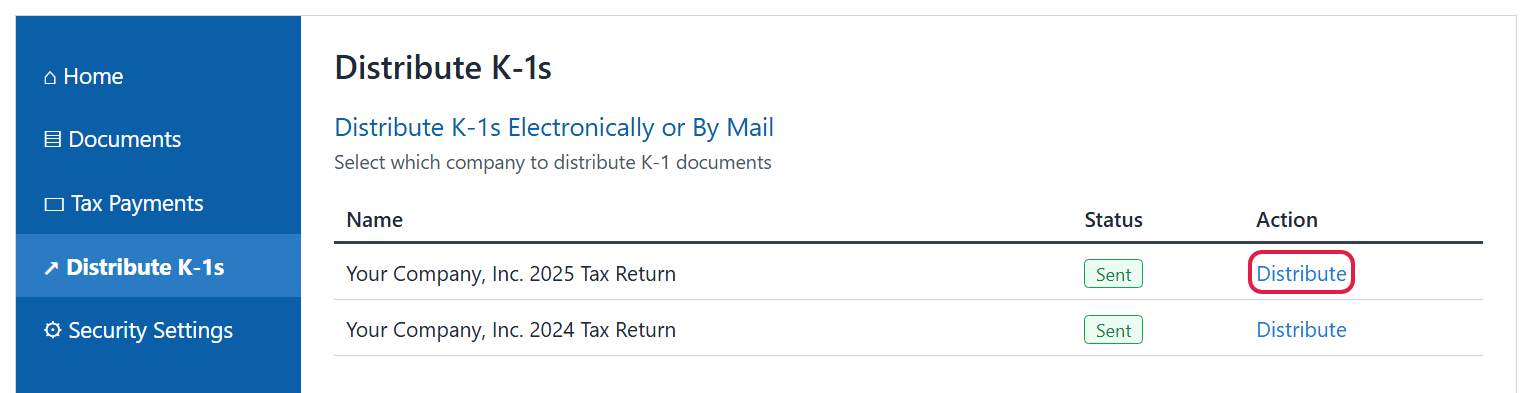
- Business owners: click Distribute K-1s to send K-1s to your partners or shareholders. Each business return shows its Status; click Distribute to send K-1s electronically or by mail.
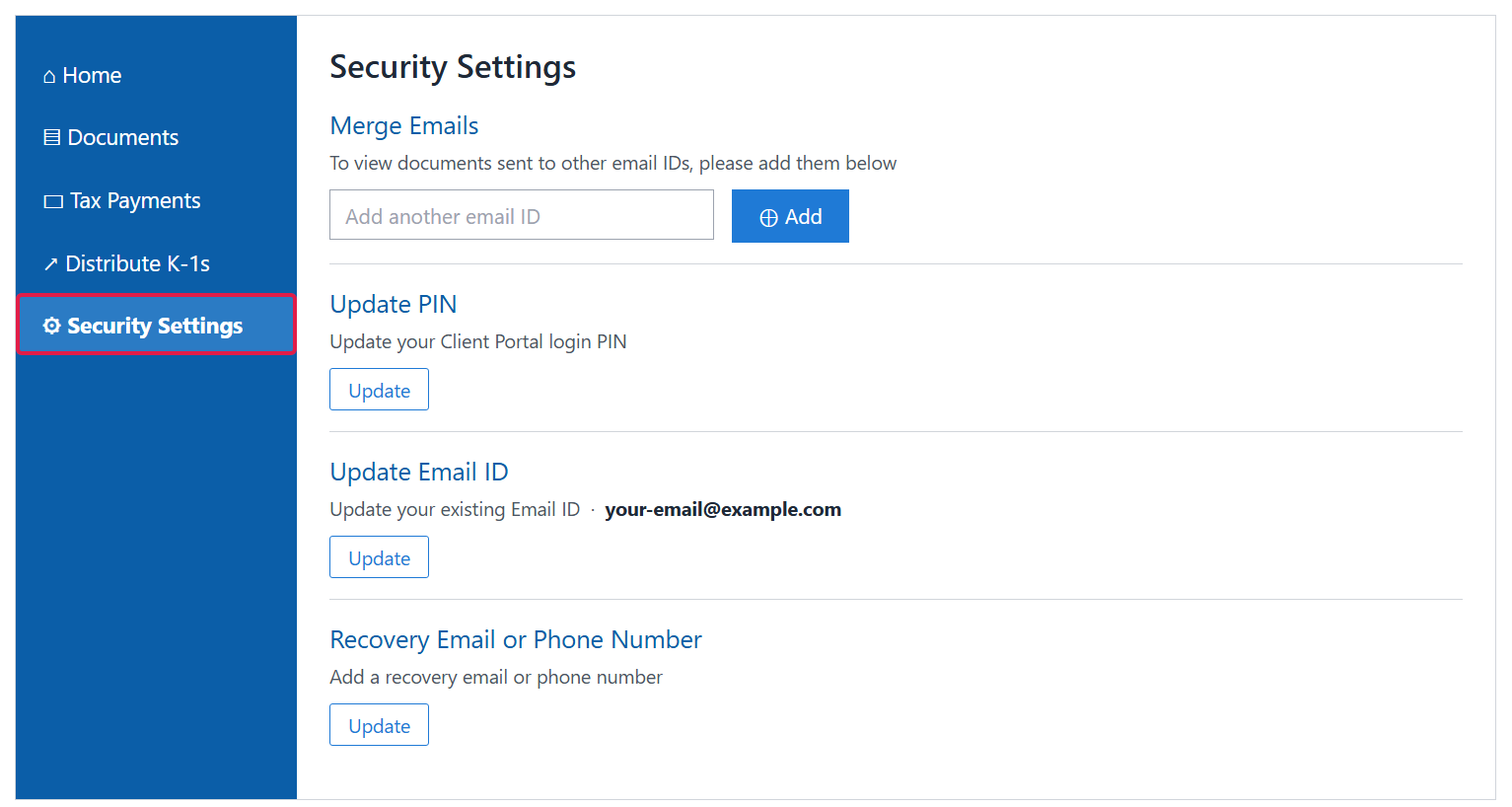
- Click Security Settings to manage your login. Here you can merge other email addresses into one portal (Merge Emails), change your login PIN (Update PIN), change your email address (Update Email ID), or add a Recovery Email or Phone Number so you can get back in if you’re ever locked out.
Good to know
- Always sign in with the same email address we have on file—that’s how the portal finds your documents. If we’ve sent things to more than one of your addresses, use Merge Emails to see them all in one place.
- Click Log Out at the bottom of the left menu when you’re done, especially on a shared computer.
- On a phone or tablet, downloading documents, paying vouchers and distributing K-1s aren’t available—use a computer for those. See our Client Portal on mobile guide.
- Still stuck? Call us at (765) 742-4141 and we’ll walk you through it.