Requesting a Filing Extension
When your extension is ready, we’ll email you a secure link so you can review it, approve it, and see any payments due — all from your computer or phone. Here’s how it works, step by step.
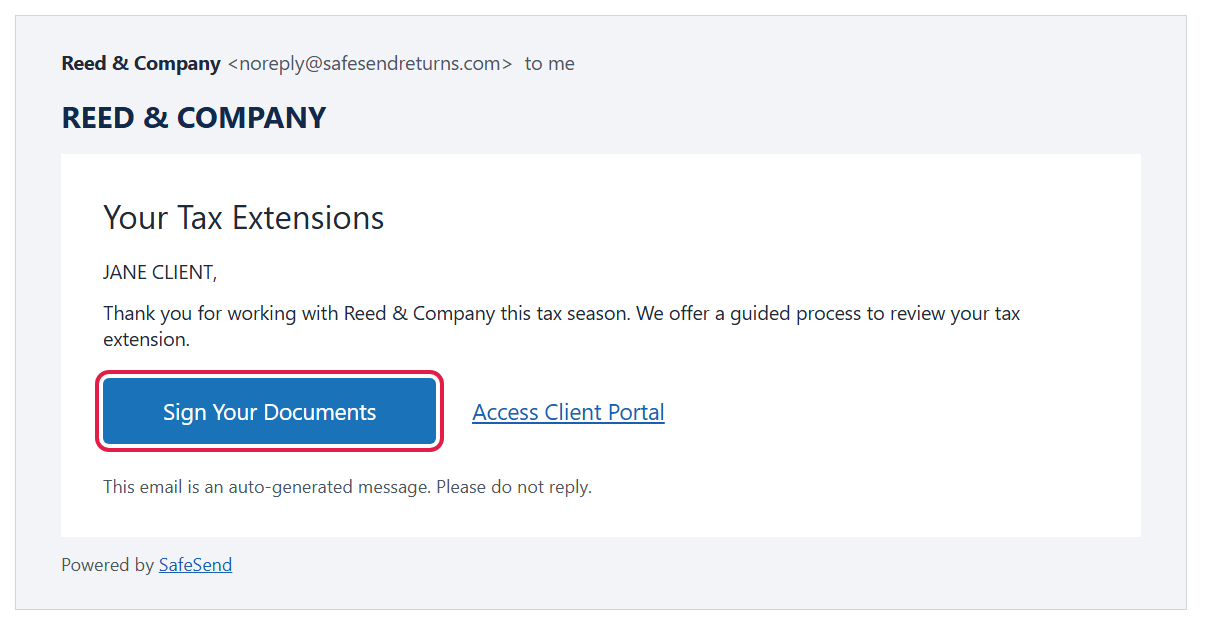
- Open the email and click Sign Your Documents. The email comes from noreply@safesendreturns.com on our behalf, so check your spam folder if you don’t see it.
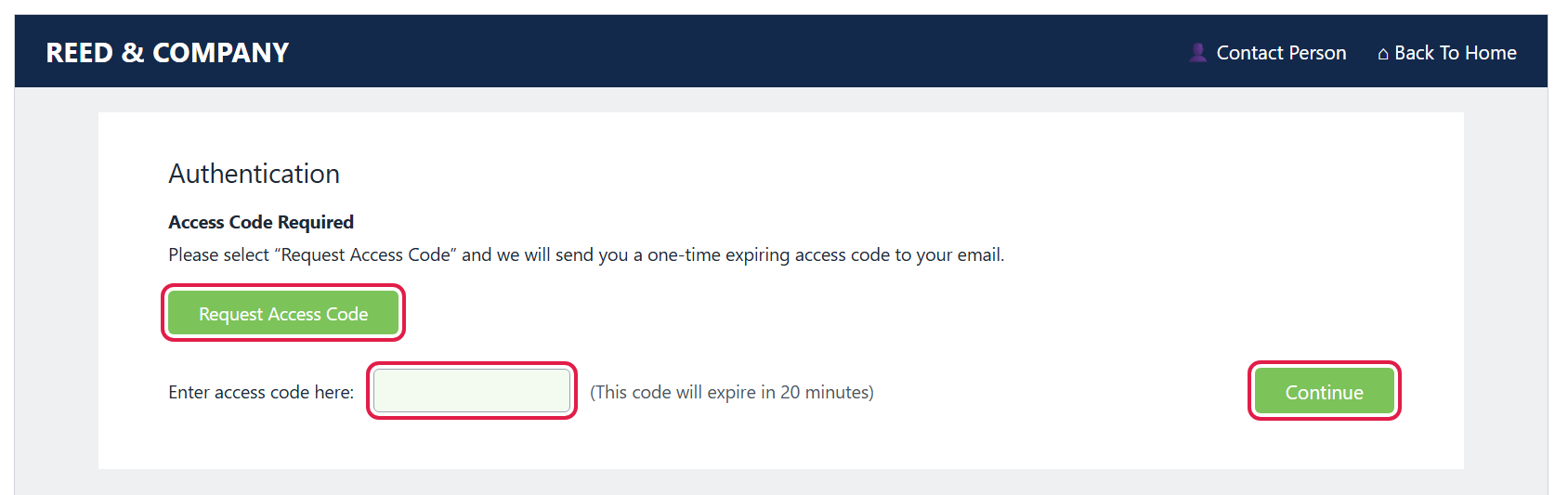
- Verify it’s you. Enter the last four digits of your Social Security number and click Continue. On the next screen, click Request Access Code, type in the code we email you (it expires in 20 minutes), and click Continue.
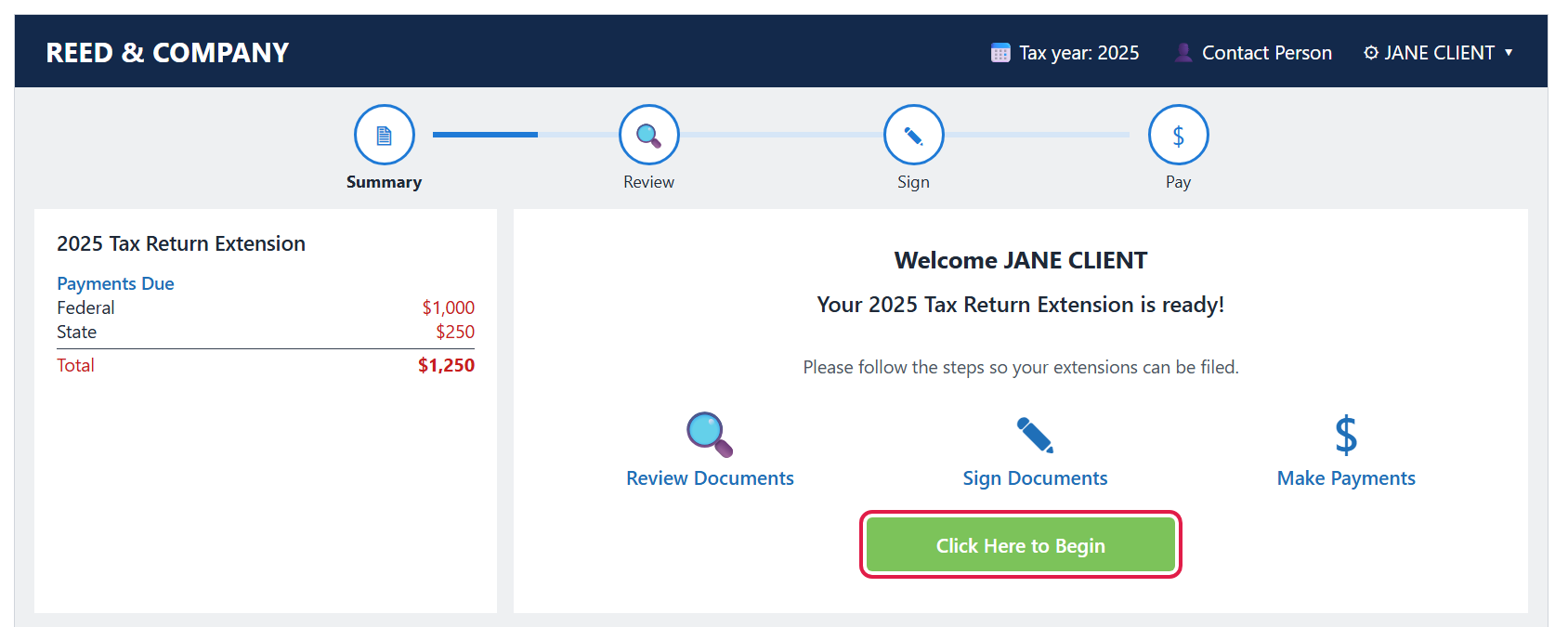
- Click Click Here to Begin. This welcome page shows a summary of any payments due on the left, and the steps along the top: Summary, Review, Sign and Pay.
- Read our message, then review your documents and click Continue. Click each section name on the left to look through your extension. You can also click Download Tax Document(s) to save a copy, or Forward a copy of my tax documents to send one to someone else.
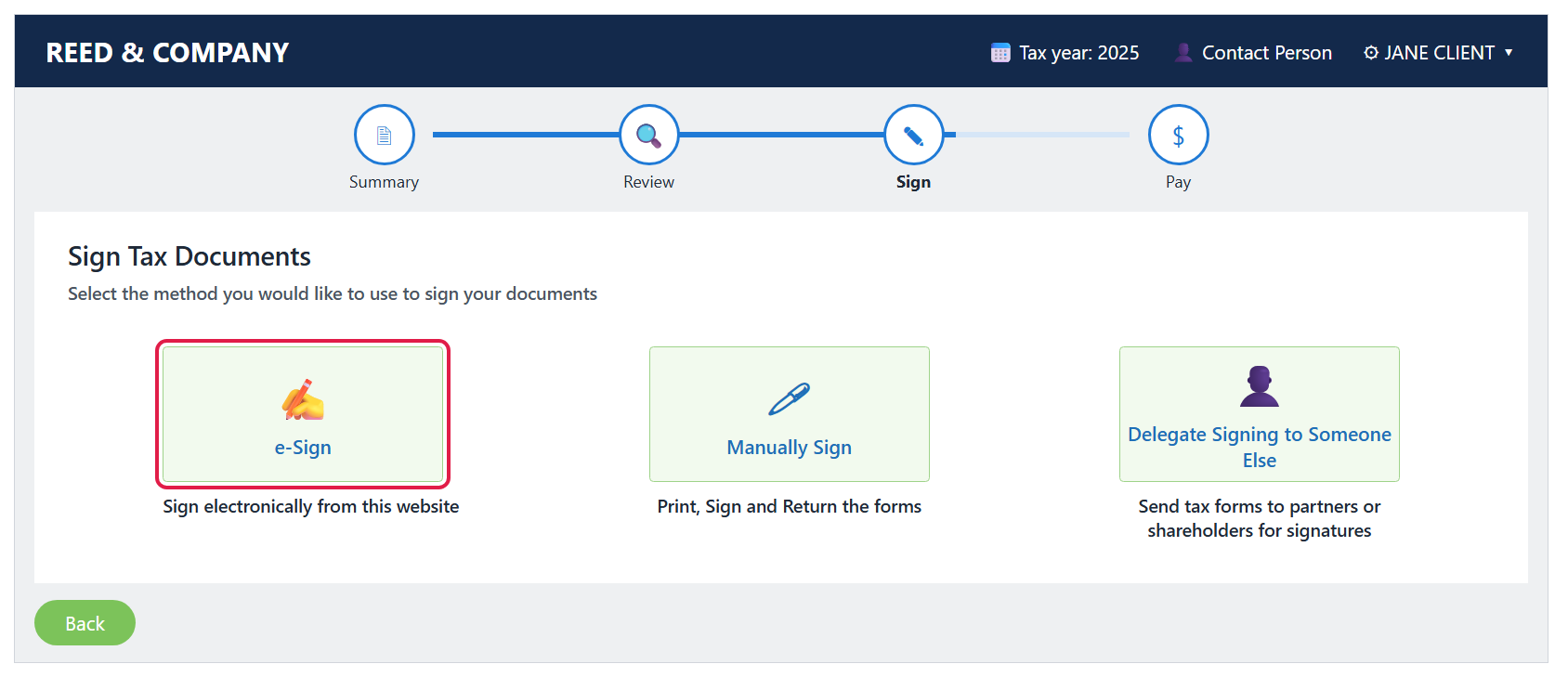
- Choose e-Sign. Depending on your extension, you may also see Manually Sign (print, sign and return) or Delegate Signing to Someone Else.
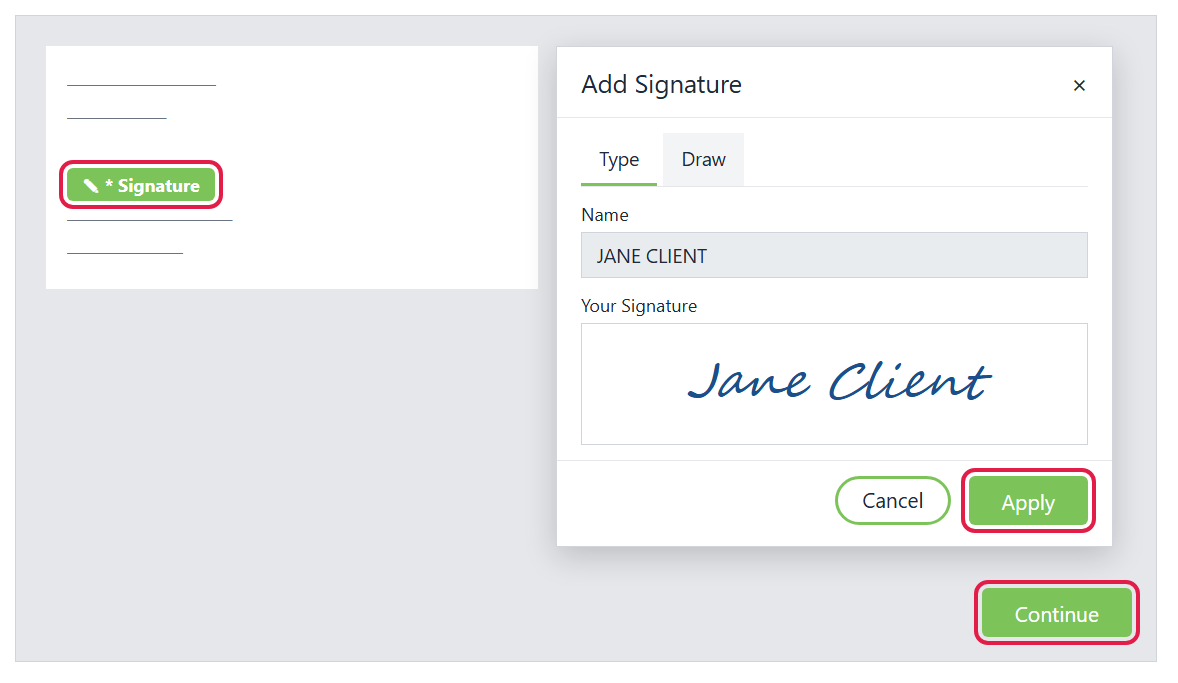
- Confirm your identity and sign. Enter or confirm your date of birth, check the box that you’ve reviewed your extension and consent to e-sign, and click Continue. If you’re asked Security Questions, answer them to continue. Then click each green Signature block, type or draw your signature, click Apply, and click Continue when every field is done.
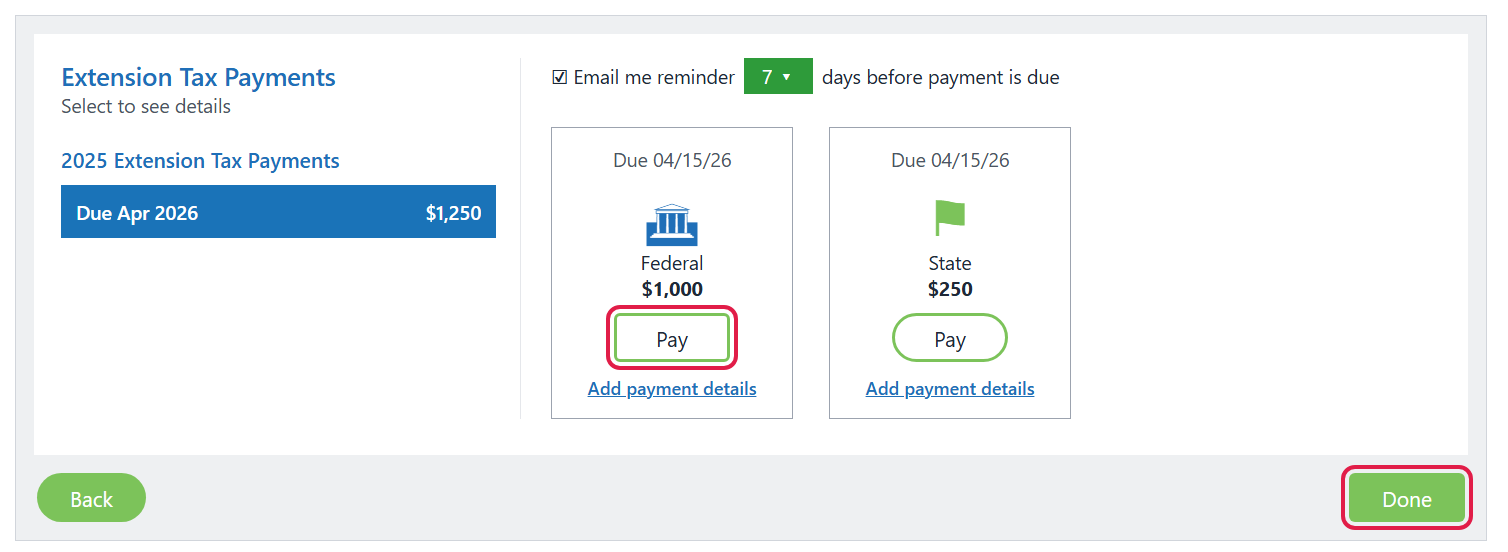
- Review your payments and click Done. Click Pay on any payment to see how to pay it online or download a voucher to mail with a check. If you’ve already paid, click Add payment details to note it for your records.
Good to know
- If you file jointly, your spouse gets their own email and must sign too. Your extension can’t be filed until both of you have signed.
- Adding payment details is only for your records — it doesn’t make a payment.
- Check Email me reminder on the payments page to get a reminder before a payment is due.
- When you’re finished, you’ll land back on your dashboard, where you can view or download your documents any time.
- Still stuck? Call us at (765) 742-4141 and we’ll walk you through it.