Managing Multiple Business Returns
If you oversee several related business returns — for example, as the controller for a group of entities — SafeSend lets you handle all of them from one dashboard. Here’s how it works.
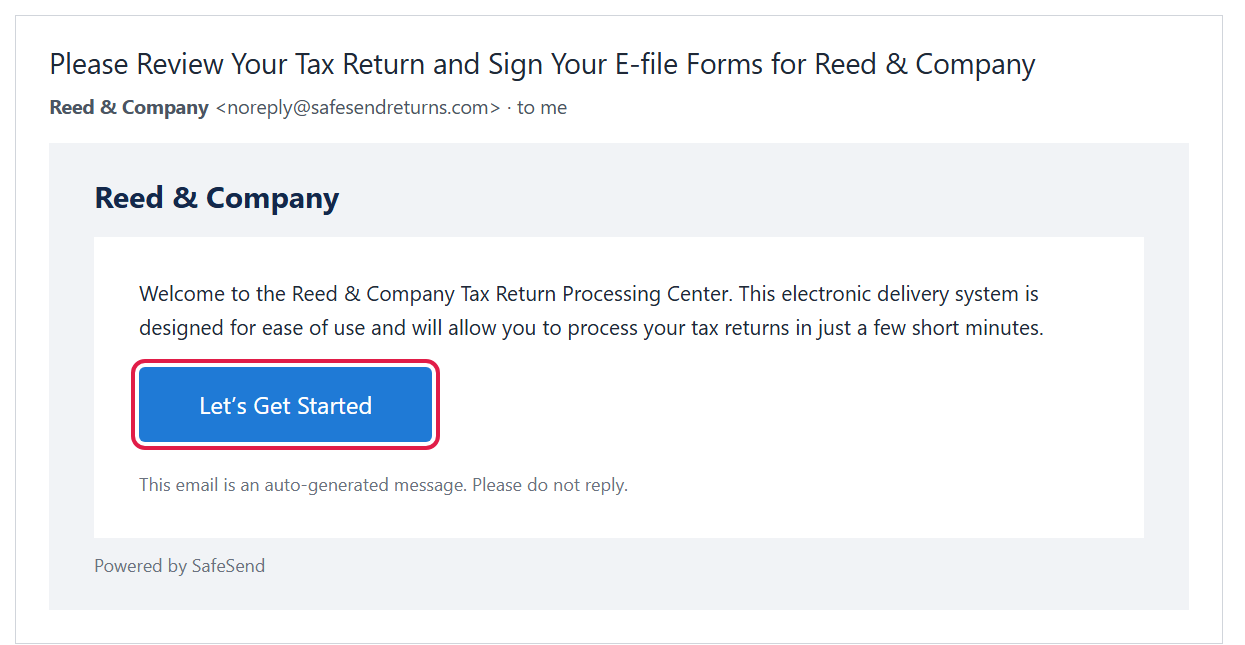
- Open the email and click Let’s Get Started. The email comes from noreply@safesendreturns.com on our behalf and opens your whole group of returns.
- Click Get Started, then Send Code. SafeSend sends a one-time access code to your email or mobile phone, depending on how your account is set up.
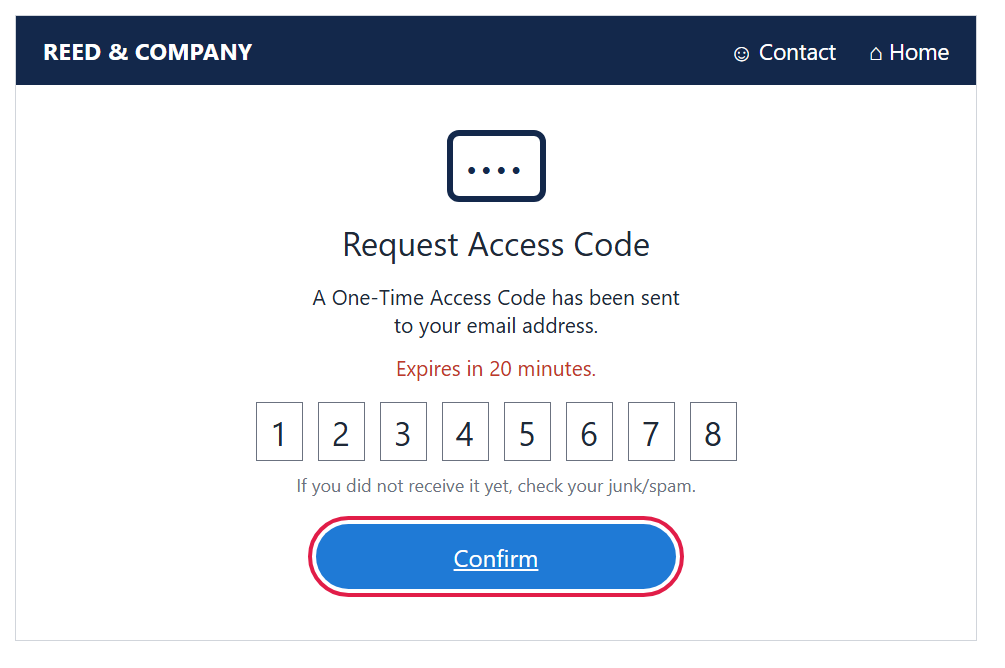
- Enter the code and click Confirm. The code expires in 20 minutes — if you don’t see it, check your junk/spam folder or request a new one.
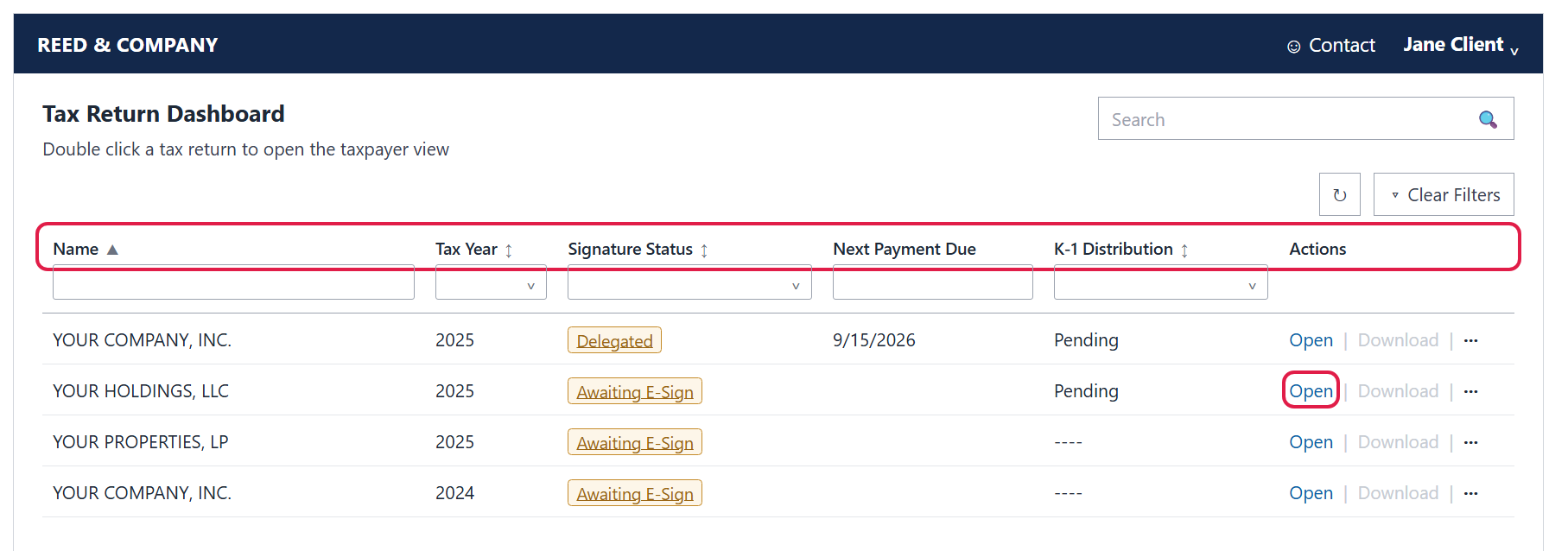
- Find the return you want on the Tax Return Dashboard. Every return in your group is listed with its Tax Year, Signature Status, Next Payment Due and K-1 Distribution. Click a column header to sort, type or pick in the box under it to filter, or use Search. Clear Filters shows the full list again.
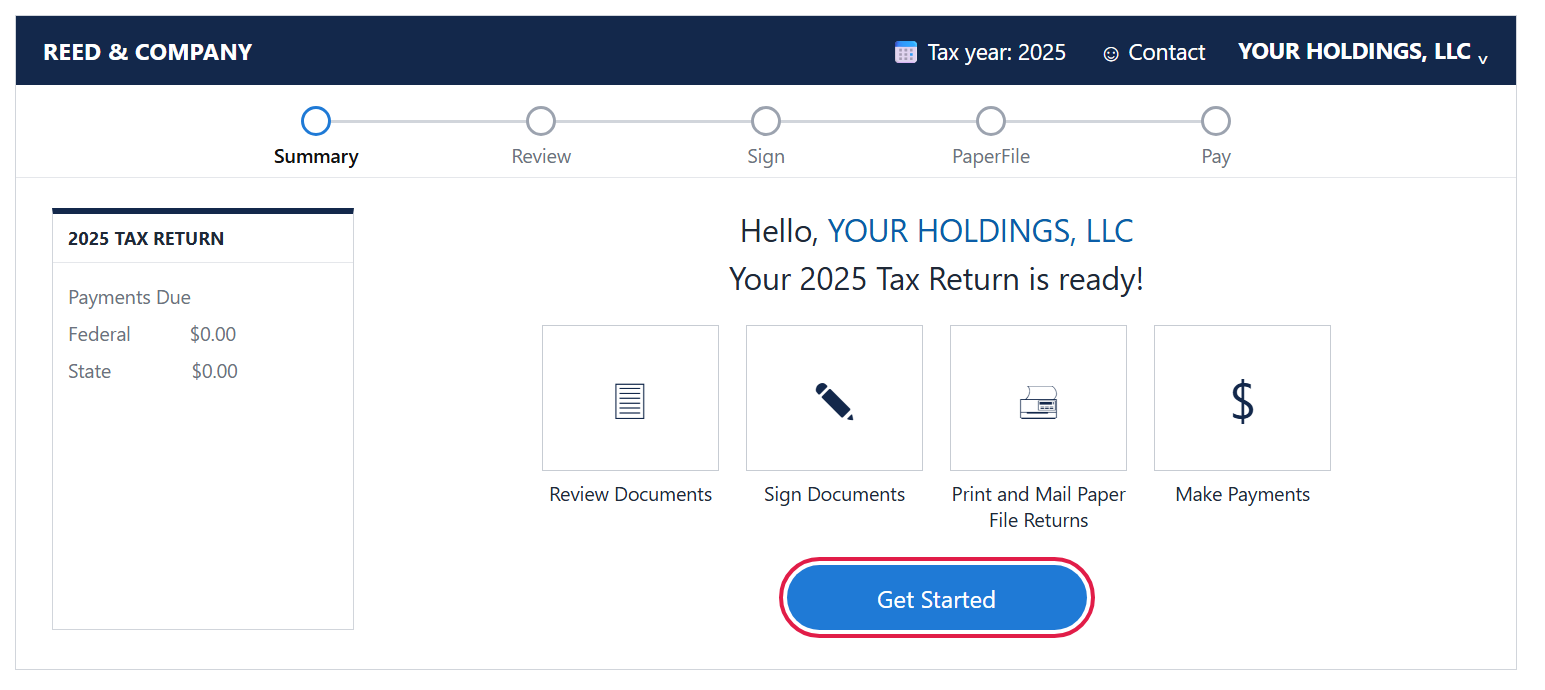
- Click Open on a return. (Double-clicking the row works too.) This takes you into that return’s own page.
- Click Get Started and finish that return. From here it’s the same as a single return: review the documents, sign, distribute K-1s if the entity has them, and set up payments.
- Repeat for each remaining return. When you finish one, you’ll see a page confirming all required steps are completed, with buttons to make payments, distribute K-1s or download documents later. Return to the dashboard and Open the next return on your list.
Good to know
- As the controller, you receive all signing and payment-voucher reminder emails for every return in the group.
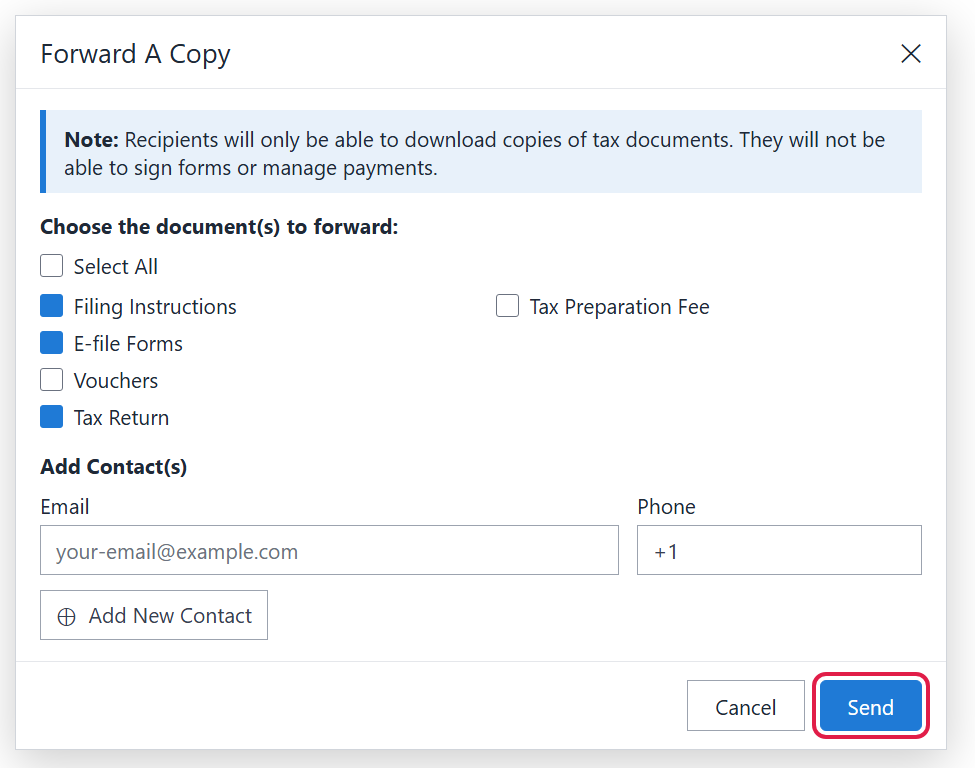
- Need to share copies with a colleague? The Forward A Copy window lets you pick documents (such as Filing Instructions, E-file Forms or Tax Return) and enter their email and optional phone, then click Send. They can only download copies — they can’t sign or manage payments.
- Still stuck? Call us at (765) 742-4141 and we’ll walk you through it.